
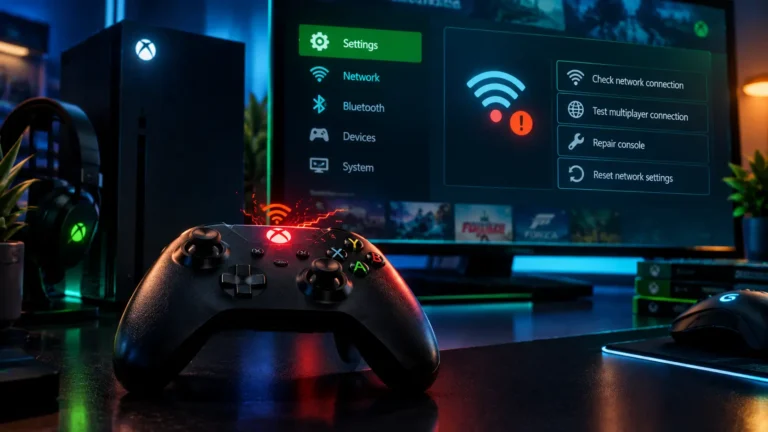
Nothing kills a gaming session faster than an Xbox controller won’t connect error, or watching your controller drop out mid-match. The good news is that most connection problems come down to a handful of common causes — battery power, interference, outdated firmware, or a pairing glitch — and nearly all of them are fixable in a few minutes. Here’s exactly how to fix it.
Quick Answer
If your Xbox controller won’t connect or keeps disconnecting, start by replacing or recharging the batteries, then re-pair it using the sync button on both the controller and console. If that doesn’t work, move the controller closer to reduce interference, update its firmware through the Xbox Accessories app, and rule out other wireless devices causing signal conflicts.
Why Xbox Controllers Disconnect or Fail to Connect
An Xbox controller won’t connect for one of a few common reasons: low battery power, Bluetooth/RF interference from nearby electronics, an outdated controller firmware version, physical damage to the USB port or battery contacts, or a corrupted pairing profile on the console itself. If none of the fixes below resolve it, the issue may be a hardware fault, and it’s worth contacting Xbox Support directly to check warranty and repair options.
Note: If multiple controllers all fail the same way on one console, the issue is more likely with the console’s wireless receiver than with the controllers themselves.
7 Fixes for a Controller That Won’t Connect
Fix 1: Replace or Recharge the Batteries
Low battery is the single most common reason an Xbox controller won’t connect or randomly disconnects. Swap in fresh AA batteries or fully charge a rechargeable battery pack, then try reconnecting.
Fix 2: Re-Sync the Controller
If your Xbox controller won’t connect after a battery swap, a fresh sync usually clears the problem:
- Turn on the console — make sure the Xbox is fully powered on, not just in standby.
- Press the Xbox button — hold it for a few seconds to power on the controller.
- Press the sync button on the console — it’s near the USB port or disc slot.
- Press the sync button on the controller — within 20 seconds, on the top edge.
- Wait for the Xbox button to stop flashing — a solid light means it’s paired.
Fix 3: Reduce Distance and Interference
Wireless controllers can lose connection when too far from the console or when other 2.4GHz devices — routers, microwaves, USB 3.0 hubs — sit nearby. An Xbox controller won’t connect reliably beyond about 10-15 feet, so move closer with a clear line of sight.
Fix 4: Update Controller Firmware
Outdated firmware is a frequent reason an Xbox controller won’t connect or drops mid-session. Connect the controller via USB cable to an Xbox console or PC, open the Xbox Accessories app, and install any pending firmware update.
Fix 5: Try a Different USB Cable or Port
If you’re using a wired connection, a faulty or charge-only cable can mimic a disconnection issue. Swap to a known-good data cable and try a different USB port on the console.
Fix 6: Disconnect Other Wireless Accessories
Too many wireless devices paired to the same console can cause signal conflicts. Temporarily unpair headsets or extra controllers you’re not using, then reconnect the problem controller.
Fix 7: Reset the Controller’s Pairing Profile
As a last resort, unpair the controller entirely from Settings > Devices & Connections > Accessories, power the controller off, then repeat the sync process in Fix 2 as if pairing it for the first time.
Common Mistakes to Avoid
When an Xbox controller won’t connect, it’s easy to jump to the wrong fix. Watch out for these mistakes:
- Assuming it’s always the controller — a console’s wireless receiver or a USB port can just as easily be the real problem.
- Skipping firmware updates — many “random” disconnects are fixed permanently by a single firmware update.
- Using a charge-only cable — some third-party USB cables only carry power, not data, which blocks wired pairing entirely.
- Ignoring battery contacts — corroded or dirty battery terminals can cause intermittent connection drops even with fresh batteries.
Troubleshooting
Problem: Xbox controller won’t connect and disconnects every few minutes.
Why it happens: Usually a battery or interference issue rather than a pairing failure.
Solution: Replace batteries first, then move closer to the console and remove nearby wireless devices.
Problem: Controller won’t enter pairing mode at all (no flashing light).
Why it happens: Dead batteries or a hardware fault in the sync button.
Solution: Try a wired USB connection first to confirm the controller powers on, then attempt wireless sync again.
Problem: Controller works on one console but not another.
Why it happens: Controllers can only be actively paired to one console’s wireless profile at a time in some configurations.
Solution: Unpair it from the first console before syncing to the second.
Frequently Asked Questions
If your Xbox controller won’t connect again after trying these fixes, it’s likely a hardware issue worth checking with Xbox Support. Once it’s back online, it’s worth checking your account details too — see if your ideal gamertag is available, or check whether a friend is online right now.
Check Xbox Gamertag Availability
Look Up an Xbox Online Status