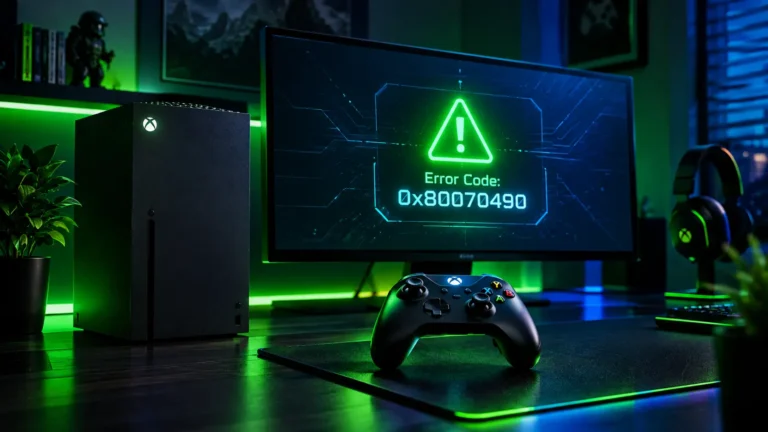
Xbox error codes can stop you cold, whether it’s a wall of numbers during startup or a cryptic sign-in failure. This guide covers the Xbox error codes players run into most, in plain language, with the fix for each one. You don’t need to memorize every code Xbox has ever shown; most fall into a handful of categories, and knowing which category you’re dealing with tells you where to start.
Quick Answer
Xbox error codes fall into two main types: E-codes (like E101, E106, E200), which point to a problem with a system update or startup, and long codes starting with 0x (like 0x87DD0006), which usually mean a sign-in, network, or licensing issue. Start with a hard reset for E-codes, and check Xbox Live status first for 0x-codes.
If a code isn’t listed here, search it directly in Xbox’s official error code guide, since Microsoft adds and updates codes over time.
How to Read Xbox Error Codes
Most Xbox error codes fall into one of two formats, and the format alone tells you roughly what’s wrong before you even look up the specific code.
| Format | Example | Usually means |
|---|---|---|
| E-code | E101, E106, E200 | A system update or startup failure |
| Long hex code (0x…) | 0x87DD0006, 0x8027025a, 0x80190190 | A sign-in, network, or licensing problem |
Write down the full code, including any numbers that follow it. An E-code like “E200 00000074 00000000” carries extra digits that matter if you ever contact support, even though the first part (E200) is what you’d search for.
Update and Startup Codes: E101, E106, E200
These Xbox error codes appear while your console is installing a system update or trying to boot, before you ever reach the dashboard.
E101
What it means: Xbox Support confirms E101 appears when there’s a problem installing a console update. Fix: Try the update again after a hard reset. If it keeps failing, run an offline system update using a USB drive and the Xbox recovery tool from Microsoft’s site.
E106
What it means: According to Xbox Support, E106 shows up when you try to turn on your console and a system update didn’t install correctly. Fix: Power cycle the console, then retry the update. An offline update via USB clears most persistent cases.
E200
What it means: E200 most often points to a failed or interrupted system update. On Xbox Series X|S, a small number of cases trace back to a hardware fault, most commonly the power supply, rather than software. Fix: Start with a hard reset and an offline update. If E200 returns immediately after a clean update, the console likely needs a hardware check.
Quick tip: For any E-code, a hard reset means holding the power button for about 10 seconds until the console fully shuts down, not just backing out to the dashboard.
Sign-In and Network Codes: 0x87DD0006, 0x8027025a, 0x80190190
These Xbox error codes usually appear when you try to sign in, connect to Xbox Live, or launch an app that needs a connection.
0x87DD0006
What it means: Xbox Support lists 0x87DD0006 as a sign-in failure on console or PC. It’s commonly tied to an Xbox Live outage, a network problem, or a corrupted local profile. Fix: Check Xbox Live status, restart your router, then try signing in again. If it persists, remove your account under Settings > Account > Remove accounts and add it back; your cloud saves stay intact.
0x8027025a
What it means: This code appears when signing in or starting an app, and it’s commonly linked to a licensing or account-verification hiccup rather than a full outage. Fix: Sign out and back in, confirm your internet connection is stable, and check for a pending system update.
0x80190190
What it means: A connection error that shows up when Xbox Live has trouble reaching your console, often during a server hiccup or a home network issue. Fix: Restart your router, change your DNS if the problem continues, and check Xbox Live status before trying anything more involved.
General Steps That Fix Most Xbox Error Codes
Before digging into a specific code, these steps clear a large share of Xbox error codes on their own:
- Check Xbox Live status — many sign-in and network codes trace back to a server issue you can’t fix on your end.
- Hard reset the console — hold the power button for about 10 seconds, then turn it back on.
- Restart your router — unplug it for about 30 seconds before plugging it back in.
- Install pending updates — an outdated system version causes some codes on its own.
- Sign out and back in — this clears a stuck local session without touching your saves.
If the Same Code Keeps Coming Back
Problem: An E-code returns immediately after a hard reset.
Why it happens: The update didn’t fully install, or storage has an issue reading the update files.
Solution: Run an offline system update from a USB drive using Microsoft’s official recovery tool.
Problem: A sign-in code returns even though Xbox Live shows no outage.
Why it happens: Your local profile may be corrupted.
Solution: Remove the account under Settings > Account > Remove accounts, then add it back. Cloud saves aren’t affected.
Problem: Network codes keep appearing during online play specifically.
Why it happens: A restrictive NAT type or router setting can interrupt multiplayer connections even when basic sign-in works.
Solution: Check your NAT type under Settings > General > Network settings, and consider enabling UPnP on your router.
When to Contact Xbox Support
Most Xbox error codes clear up with the steps above. Reach out to Xbox Support directly when an E-code returns right after a completed offline update, when a console shows physical signs of a problem such as a burning smell or unusually loud fan noise, or when a sign-in error persists across multiple devices and accounts, which points to something beyond a simple reset.
While you sort out an error, you can still look up how a profile appears to others with the Xbox Gamertag Finder, or check the naming rules if a fresh start means picking a new gamertag once your console is back online.
Frequently Asked Questions
Once your console is back online, look up any Xbox profile or check gamertag availability for a fresh start.