
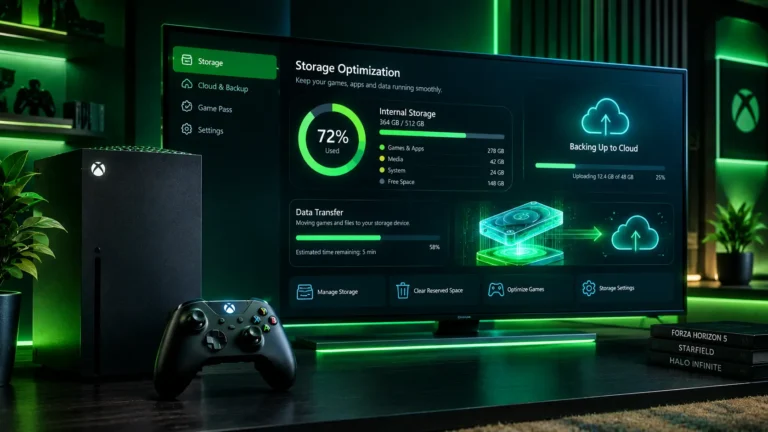
That “not enough space available” message always seems to show up right before you want to install something new. When your Xbox storage is full, the instinct is to start deleting games — but that means losing hours of downloads and sometimes save progress. The good news is there are several ways to free up space without touching your library at all.
Quick Answer
If your Xbox storage is full, start by clearing cached data, moving save files to the cloud, uninstalling unused add-ons and DLC (not full games), and connecting an external hard drive for extra room. These steps typically free up several gigabytes without deleting a single game.
Why Xbox Storage Fills Up So Fast
Modern games take up far more space than older titles thanks to high-resolution textures, day-one patches, and optional content packs. Add in system cache, screenshots, captured clips, and leftover add-ons from games you no longer play, and it’s easy to see how Xbox storage full warnings show up faster than expected — often well before your actual game library seems large.
Note: Xbox Series X|S internal storage is reserved partly for the OS and system files, so the usable space is always a bit less than the drive’s advertised capacity.
For more Xbox tools and guides like this one, visit the Xbox Gamertag Finder homepage.
5 Ways to Free Up Space Without Deleting Your Games
Here are the most effective ways to fix an Xbox storage full warning without removing any of your installed games:
1. Clear Persistent Storage and Cache
Cached data from apps and games can quietly eat several gigabytes over time and is often the biggest hidden cause of an Xbox storage full alert. Go to Settings > System > Storage, select your drive, and clear persistent storage — this doesn’t remove your games or saves, only temporary files.
2. Move Save Data to the Cloud
Xbox automatically backs up most save files to the cloud when you’re signed in and connected. Confirm cloud saves are enabled under Settings > System > Backup & Transfer, then delete local save copies for games you’re not actively playing — they’ll re-download automatically next time you launch them.
3. Uninstall Unused Add-Ons, DLC, and Duplicate Content
Add-ons, expansion packs, and language files can quietly take up as much space as the base game itself. From My Games & Apps, select a title, press the Menu button, and choose Manage game & add-ons to remove extras you’re not using while keeping the core game installed.
4. Add an External Hard Drive or Storage Expansion Card
If your Xbox storage is full on a regular basis, the most permanent fix is simply adding more of it. A USB external hard drive works well for Xbox One, while Xbox Series X|S supports both external USB drives and the official Seagate expansion card for faster load times.
5. Clean Up Captures, Screenshots, and Media
Game clips and screenshots are stored locally unless uploaded, and a large capture library can add up over months of play. Open the Captures tab, sort by size or date, and delete or upload older clips you want to keep before removing them from the console.
Common Mistakes to Avoid
When your Xbox storage is full, it’s tempting to jump straight to deleting games. Watch out for these mistakes instead:
- Deleting games instead of add-ons first — most storage bloat comes from DLC and cache, not the base game itself.
- Forgetting to enable cloud backup — deleting local saves without cloud sync enabled can permanently erase progress.
- Ignoring capture storage — screenshots and clips are easy to forget but can quietly take up multiple gigabytes.
- Buying storage before checking cache — clearing persistent storage first often frees up more space than expected, saving you the cost of a new drive.
Troubleshooting
Problem: Xbox storage full warning appears even after uninstalling games.
Why it happens: Cached data and leftover save files can remain even after a game is removed.
Solution: Clear persistent storage under Settings > System > Storage after uninstalling.
Problem: External drive isn’t recognized by the console.
Why it happens: The drive may not meet Xbox’s USB 3.0 and minimum capacity requirements.
Solution: Confirm the drive is USB 3.0 and at least 256GB, then reformat it specifically for Xbox use through the storage settings menu.
Problem: Free space doesn’t increase after deleting captures.
Why it happens: Some clips may still be queued for cloud upload or stored in a separate media cache.
Solution: Wait for any pending uploads to finish, then restart the console before rechecking available space. If your Xbox storage full issue persists after that, it’s worth contacting Xbox Support directly to rule out a system storage fault.
Frequently Asked Questions
If storage issues are just one of the console hiccups you’re dealing with, it’s worth checking a few other guides too — from fixing controller connection drops to seeing what’s coming in Xbox’s early-access testing program.
Looking for more free Xbox utilities? Browse the full set on our Xbox tools hub.
Fix Xbox Controller Connection Issues
Learn About the Xbox Insider Program